

Permission Denied (publickey,gssapi-keyex,gssapi-with-mic): Complete USA Guide (2026)

Last Updated: June 24, 2026
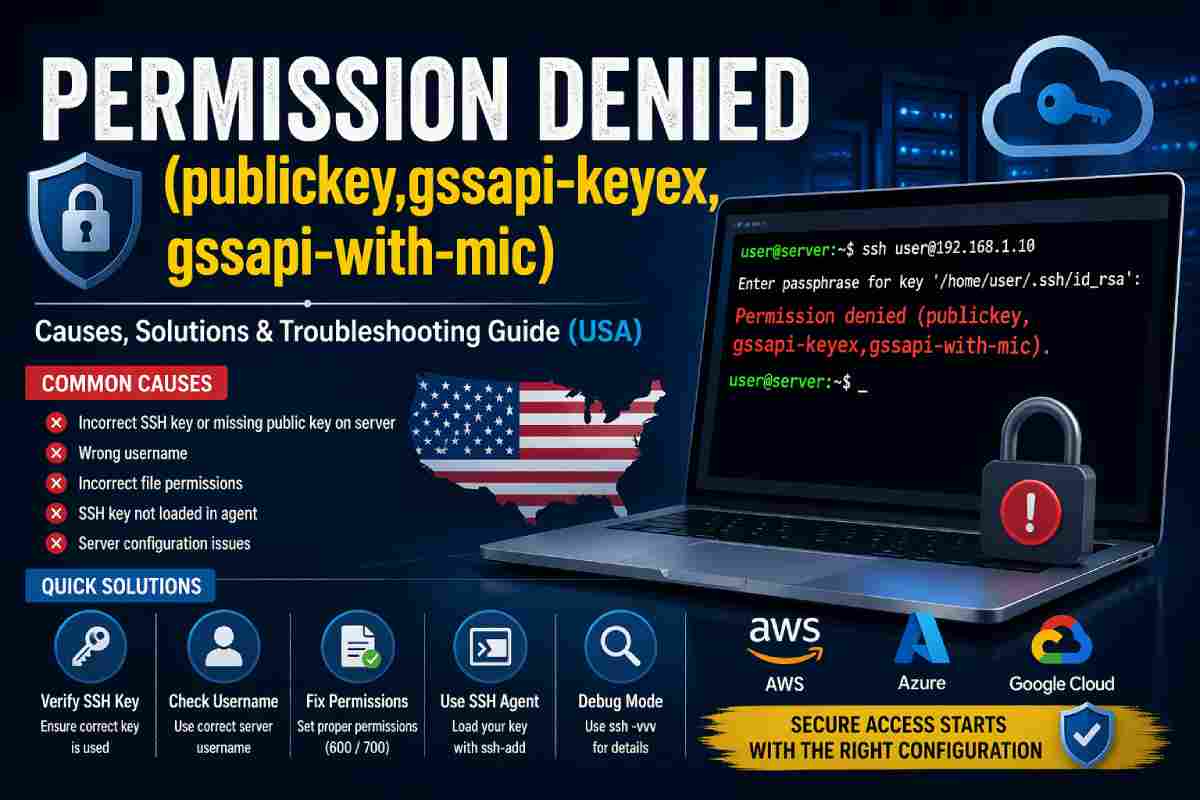
Permission denied (publickey,gssapi-keyex,gssapi-with-mic) This error is by far the most common SSH authentication issue seen within U.S.-based IT infrastructure. From startup companies utilizing cloud services to established enterprise corporations maintaining critical systems, this error clearly states that the system has denied your login as authentication has failed.
Most often this error appears when the server has been unable to authenticate you by the use of either a public key (this is the most common type of SSH authentication used), GSSAPI (which is Kerberos-based authentication and is typically seen in enterprise environments), or both authentication methods fail. When both methods fail the connection will be rejected.
It is imperative to understand what this error is, as SSH is the backbone technology for cloud services, DevOps, cybersecurity, and server administration. Whether you are connecting to AWS EC2 instances, Google Cloud servers, or secure private Linux machines this will certainly halt productivity.
Understanding the Error Message
Despite looking complicated, each part of this error message can be considered separately, and represents an authentication mechanism attempted during the connection.
| Component | Explanation | Relevance |
| Permission denied | Server rejected login request | Core issue |
| publickey | SSH key authentication failed | Most common cause |
| gssapi-keyex | Kerberos key exchange failed | Enterprise systems |
| gssapi-with-mic | GSSAPI authentication failed | Less common |
In simple terms, the server is saying:
“I tried all allowed authentication methods, but none worked.”
How SSH Authentication Works
Now you want to know how that happens? It’s time for a short explanation of how SSH authentication actually works. In most American corporations (that I know of) key based authentication has replaced passwords as they say is safer.
It basically comes down to using public/private keys. The private key will remain stored on the local machine, the public key will be stored on the server. If they match when trying to authenticate then authentication will succeed, if they don’t match then, any keys are not available or the keys are incorrect, then authentication will fail.
Common Causes of the Error
There can be various reasons why you are encountering this error. In a cloud based system that are widely adopted in the US tech industry, you may face different issues but the message always remains the same.
A very common cause is the absence of your public SSH key or the presence of an invalid one.If the SSH server on your instance does not have your public key in the authorized_keys file, your login can not be authenticated.Likewise, if you use an invalid private key for your SSH client on your machine it will fail as well.
Using a wrong username on your instance is another very common error. Each cloud provider may have its own default username. For instance ec2-user is typically used with AWS, while ubuntu is generally used by other cloud providers. It is obvious you cannot log in if you use an incorrect username on the instance. Incorrect file permissions on the instance.
SSH is extremely pedantic when it comes to security. If the permission of your .ssh folder or your SSH keys is incorrect the system will probably ignore them, thus not authenticating your request.
GSSAPI related failures are also a cause. This usually appears in enterprises which implement centralized authentication systems like Kerberos.
Common Causes Overview
| Cause | Description | Impact Level |
| Missing SSH key | Public key not on server | High |
| Wrong username | Incorrect login user | High |
| Incorrect permissions | SSH ignores insecure files | High |
| SSH agent not loaded | Key not available locally | Medium |
| Server misconfiguration | SSH settings incorrect | High |
| Cloud key sync failure | Metadata issues | Medium |
Step-by-Step Fix (Practical Approach)
You should check for the following if you get this error, Firstly: Check if you have SSH keys setup on your machine. If you have not created a key pair then create a key pair using standard ssh-keygen command.
Second Make sure that the public key is in your server. The best way is using ssh-copy-id command to make it so. Alternatively you can just put the public key into authorized_keys file. Please look at the permissions of these files, nobody else but the user the files are created for should access to the “.ssh” directory.
The private key has to be accessible only to the user performing the connection; it must not be accessible to others. Another point: The user, This may only occur to certain cloud services, namely AWS, GCP or Azure. Last of all, you should try to execute your ssh command using “-vvv”, with this option you will be able to know where in the process of authentication connection is being dropped:
Troubleshooting Solutions
| Problem | Likely Cause | Recommended Fix |
| Permission denied error | Key mismatch | Add correct public key |
| SSH not using key | Key not loaded | Use ssh-agent |
| Login fails on cloud | Username incorrect | Use provider default user |
| Key ignored | Wrong permissions | Fix chmod settings |
| Works locally but not remotely | Config mismatch | Check SSH config |
Cloud Platform-Specific Fixes (USA)
In the United States, cloud platforms dominate server infrastructure. Each platform has slightly different SSH configurations.
For Amazon Web Services (AWS), users must ensure they are using the correct .pem key file that was selected during instance creation. AWS does not allow password login by default, making key authentication mandatory.
In Google Cloud Platform, SSH keys are often managed through project metadata. If the key is not added properly, access will fail even if your local configuration is correct.
For Microsoft Azure, SSH access depends on how the virtual machine was configured during setup. If the key was not correctly associated, login attempts will fail.
Cloud Troubleshooting Table
| Platform | Common Issue | Solution |
| AWS | Wrong key or username | Use correct .pem and user |
| GCP | Missing metadata key | Add key via console |
| Azure | Key not configured | Reconfigure VM access |
Advanced Debugging Techniques
If you are an expert user, to debug the SSH problem, you will check both client side configuration and server side configuration. By checking the SSH configuration file (sshd_config), you will see if key based authentication is enabled. Restarting the ssh service after changes can make sure configurations be applied. Using run ssh daemon with debugging log will show logs in real time which indicate the reason of authentication failed.
These techniques are normally used by system administrators or DevOps engineers working for US-based organizations.
Security Best Practices in the USA
Security is a top priority in U.S.-based IT environments. Organizations follow strict SSH practices to prevent unauthorized access.
Most companies disable password-based authentication entirely and rely solely on SSH keys. Regular key rotation, restricted permissions, and avoidance of root login are standard practices.
Many organizations also implement multi-factor authentication (MFA) and integrate SSH access with identity management systems for enhanced security.
Security Practices Overview
| Practice | Purpose | Benefit |
| Disable passwords | Prevent brute-force attacks | High security |
| Use SSH keys | Strong authentication | Reliable access |
| Restrict root login | Limit privileges | Reduced risk |
| Enable MFA | Extra verification | Maximum security |
Common Mistakes to Avoid
While easy, this approach is prone to trivial errors that prevent successful authentication, many people copying the wrong public key, have incorrect permissions, or type in the wrong username. Another issue is simply forgetting to restart the SSH service after configuration. An oversight of this size will lead to the same failure, over and over again.
Mistakes and Their Impact
| Mistake | Result |
| Wrong public key | Authentication fails |
| Incorrect username | Access denied |
| Open permissions | SSH ignores key |
| Not restarting SSH | Changes not applied |
Conclusion
The permission denied (publickey,gssapi-keyex,gssapi-with-mic) error is an authentication failure due to security and an extremely important layer in keeping our systems safe from unauthorized intrusion. While the error can seem complex, the reason behind it is generally not- bad keys, wrong usernames, or incorrectly set permissions.
For cloud-based, enterprise, or U.S.-based environments, learning to troubleshoot this error is a must-know skill for both systems administrators and developers, and any member of the IT workforce. In doing so, with the right kind of troublehshooting methodology, which includes: verifying keys, checking and correcting permissions, and proper configurations, you will have access again, and the security layer of the public key authentication is strong again.
Mastering SSH authentication doesn’t only solve this one error; but it bolsters your general system administration skills overall.
Also Read: MIT Technology Review: Influence, History & Innovation